Inside the Web Browser — From Architecture to Rendering Pixels on Screen
At its core, a browser takes HTML, CSS, and JavaScript and turns them into what you see on screen. But behind that simple idea is a system that has to manage rendering, running code, and handling resources all at the same time.
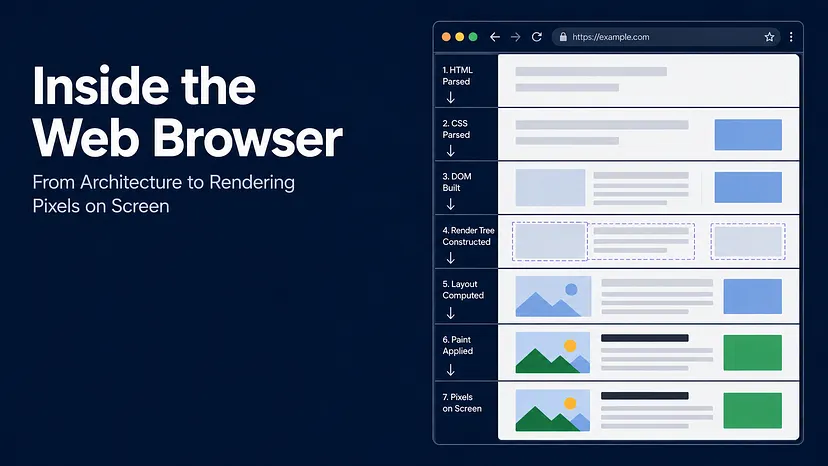
Browser Architecture
When we think about browsers, a lot is already taken care of for us — memory management, RAM, CPU resources. We don't have to think about any of that, especially in the JavaScript world. But that raises a question: what is the browser actually doing?
When you receive an HTML document from the server, the browser's primary job is to take that document along with any CSS and JavaScript and turn them into pixels on screen.
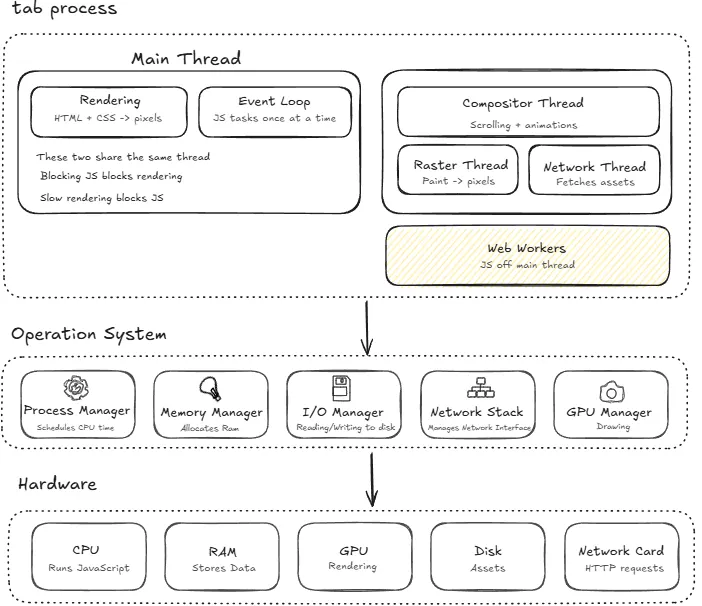
Modern browsers have a multi-process architecture, meaning each tab generally runs in its own process, though in practice the browser may share or reuse processes depending on memory constraints. Your operating system (Windows, Mac, Linux) is responsible for separating these, giving each one its own memory and CPU time. That's why when one tab crashes, it doesn't take the whole browser down.
Inside each of these tab processes there are four threads doing different jobs:
- Main thread — this is where two critical things happen: rendering, which turns HTML and CSS into something visual, and the event loop, which keeps JavaScript responsive by executing tasks one at a time. Because these two share the same thread, long-running JavaScript can block rendering, and expensive rendering can delay JavaScript execution.
- Compositor thread — handles scrolling and animations independently of the main thread
- Network thread — fetches resources like API calls and assets without blocking anything else
- Raster thread — converts paint instructions into actual pixel data (bitmaps) that the GPU can work with
JavaScript also has access to Web Workers, a browser API that lets you spin up additional threads on demand to run heavy work off the main thread. Unlike the threads above, they're not a fixed part of the browser's architecture, and they only exist when your code creates them.
Below all of that, the OS acts as the coordinator. The process manager schedules CPU time and the memory manager allocates RAM. The browser doesn't directly control any of this, it asks the OS, and the OS decides how resources are shared across everything running on your machine.
At the lowest level, everything comes down to hardware. JavaScript runs on the CPU, data is stored in RAM, assets are read from disk, rendering is handled by the GPU, and network requests go through the network card.
Now that we have a better understanding of how a browser is structured, let's look at the Web Rendering Pipeline. How do we actually go from an HTML document to pixels on screen?

HTML Parsing → DOM Tree
When the HTML document comes back from the server, the browser parses it and creates the DOM (Document Object Model). The DOM is a live, in-memory tree representation of the entire HTML document. Think of it like a house blueprint where every node inside represents part of the structure.
You've probably used the DOM a lot already, especially through JavaScript, which uses these nodes to read and modify the page.
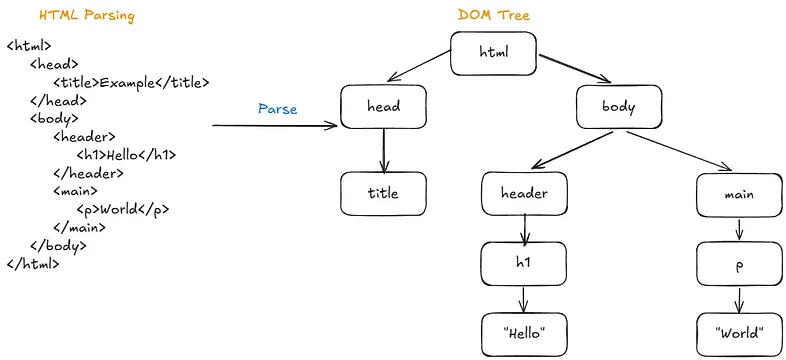
The browser uses this tree internally during style calculation, layout, and painting.
2. CSS Parsing → CSSOM
Alongside the DOM, the browser parses the CSS into the CSSOM (CSS Object Model). It matches all the rules in the CSSOM to the nodes in the DOM, calculating the computed style for each element, taking care of specificity, inheritance, and the cascade along the way. Once both trees are ready, they combine into the layout tree, also known as the render tree.
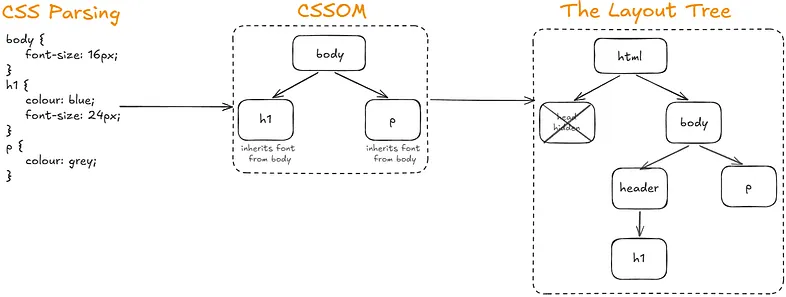
3. The Layout Tree
The layout tree is where the browser does the box model calculation for every element on the page — figuring out the content size, padding, margin, and border, and based on all of that, where exactly each element sits on the page.
This isn't done in isolation, though. The size and position of one element affects the surrounding others. A parent constrains its children, siblings sit next to each other.
With a flexbox container for example, the browser has to look at the container, all the children inside it, figure out how they share the available space, and calculate positions for all of them together.
At this point, the layout tree only knows things like "this box is 20px wide and contains text with a background." The actual drawing happens in the next phase.
4. The Paint Phase
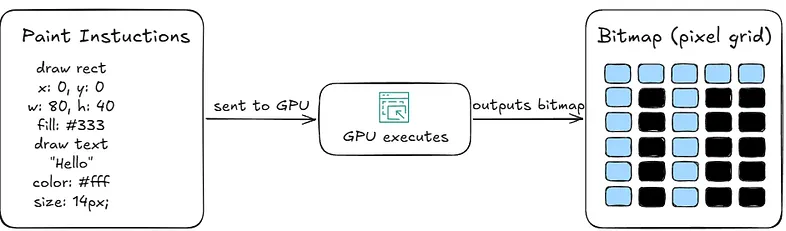
During the paint phase, the browser takes the layout tree and turns it into a list of paint instructions. These instructions represent a list of what needs to be drawn on screen and in what order. It takes something like "this box is 20px wide with a background" and translates it into "draw a blue rectangle at these coordinates, then render this text with this font, then draw this border."
Nothing is drawn to the screen yet. It's just a recording of what needs to be painted.
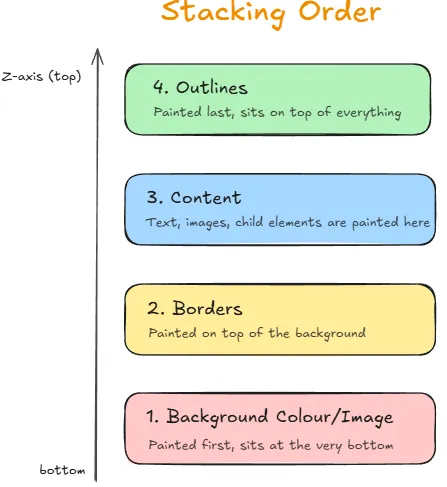
These instructions are executed in a specific order known as the stacking order, which determines what appears behind and what appears on top along the Z-axis. Backgrounds are drawn first, then content and borders, and finally outlines.
5. Rasterization
Once we have those paint instructions, they get rasterized (converted) into bitmaps (actual pixel data) because that's not something the screen can display yet. Screens don't understand instructions but they understand pixels.
During rasterization, those instructions are converted into a grid of pixels where each pixel has a specific colour value. This is handled by the GPU, and the resulting bitmaps get stored in GPU memory and reused during composition.
Two specific cases worth understanding:
- Image decoding — images arrive compressed over the network. Before they can be displayed, the browser expands them into a bitmap where every pixel has a colour value. That's why an image takes up much more memory at runtime than its file size suggests.
- Text rasterization — text isn't stored as pixels. Fonts are just shape outlines. When the browser displays text, it converts those outlines into pixels at the required size.
6. Composition
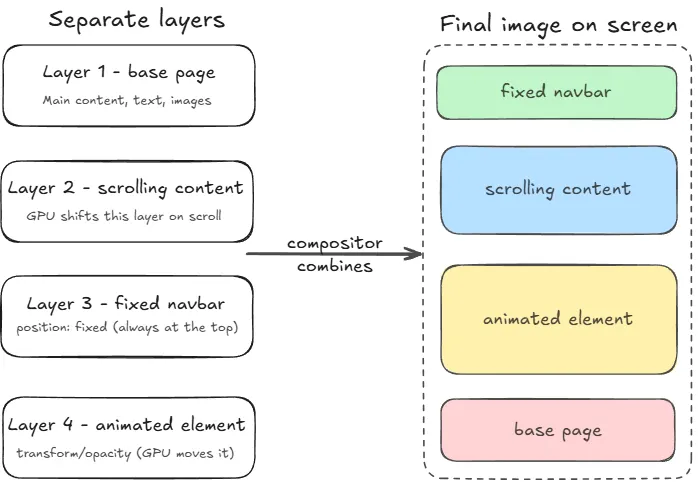
Instead of treating the whole page as one flat image, modern browsers split it into layers based on certain conditions — transforms, opacity, video, overflow. Each layer gets rasterized separately and sent to the GPU, where the compositor combines them into the final image.
Because layers are independent, things like scrolling, zooming, and CSS transforms can be handled by the compositor thread without touching the main thread at all.
This is a key performance optimization: instead of re-running layout, paint, and raster, the browser just moves or transforms existing bitmaps on the GPU, which is why these interactions feel smooth.
7. The Draw Phase
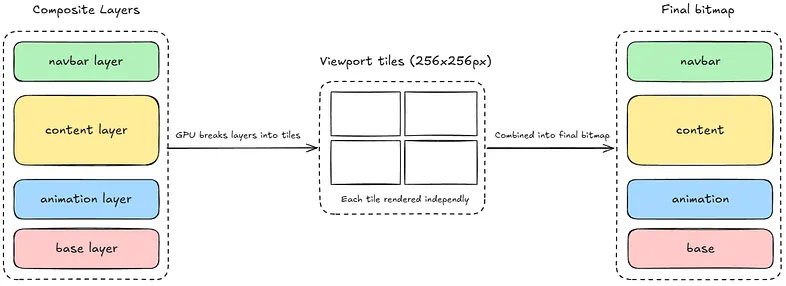
Now that those paint instructions have been converted into pixels and the GPU has rasterized them into bitmaps, the draw phase executes the aggregated compositor frame on the GPU to produce the final pixels on screen. The tiling happens earlier, during rasterization — the compositor breaks layers into tiles and rasterizes them individually. By the draw phase, that work is already done.
PS: This is based on my own research and understanding of how the web browsers and the Web Rendering Pipeline work. I'd always recommend double-checking other resources if you want to go deeper. I wrote this mostly for myself, but if it helps someone else along the way, that's a win. Thanks for reading.